
Mar 16, 2026
How to use the Post Office's International Mail service on smartphones
Today, I had to send important documents to my home country. It has been so long since I put anything in the physical post. Moreover, I've always had a block with the post office after years of various dramas at the post office in Japan. Some of those stories I have shared on City-cost before. But the point - I was already dreading going to the post office, before I found out that you can no longer just hand over a parcel at the counter and have it sent home.
No, in this world where we've gone backwards to go forwards, you now have to register the package online and you can't physically do it at the post office. You can in theory do it at the post office, but you need to have your smart phone with you and if you don't have data and are relying on Wifi, you will need to be sure the post office has free wifi in order to use your smart phone to prepare for post.
The very nice post office clerk handed me a SEVEN page document in English about how to use the service online. Let me break that down into a few sentences for you! Here is the summary:
1. Register online through the QR code provided. If you don't have an account already, create one and confirm it through the email they will send you.
2. Sign into your new / existing account.
3. Follow the prompt to input the sender information.
4. Do the same again for the recipient.
5. Select the shipping type and method and follow the prompts.
6. Register information about the contents by filling in all the necessary fields. They are drop down boxes to make sure you click on the drop down and find the most accurate description of your item.
7. Input the shipping information, including the date you are dropping the package off at the post office.
8. Confirm everything you have inputted.
9. Check your email to ensure you got a 2D code and / or item number that you will use in the post office to complete your transaction.
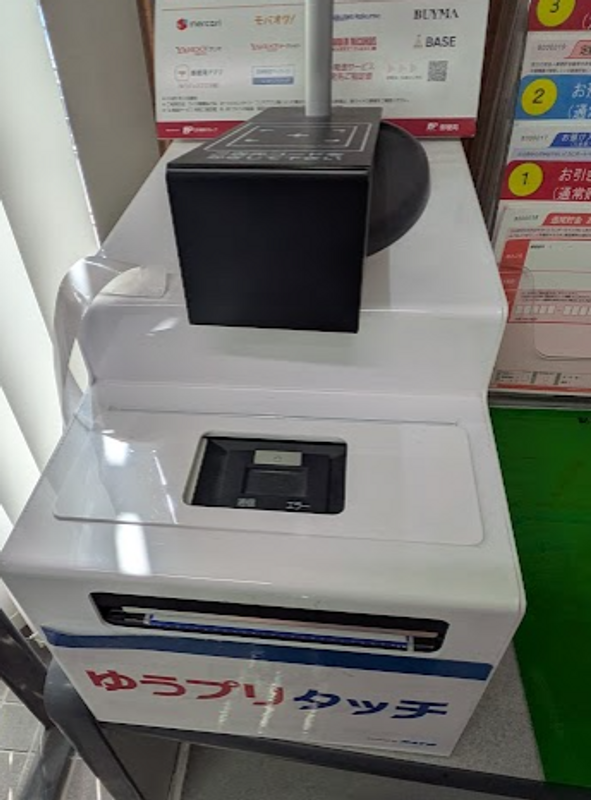
10. Go to the post office and use the Yu-puri touch terminal to print your lable.
11. Bring the label and package to the counter, have it weighed and details confirmed, sign, pay the cost (by weight / content) and hand the package over for posting.
The photo in this post is of the Yu-puri touch terminal you using for printing the label in the post office. Just a note if you are sending documents, as I was, and chose the "EMS documents" option, you don't have to click on the air, land, sea buttons. You also don't need to put in the weight. But it states the clearly under the weight box. It said something along the lines of 'leave blank if you don't know the weight and you can do it in the post office'. But other than that, it is very straight forward, just an (in my humble opinion, unnecessary) inconvenience.

Former nickname was "Saitama". Changed it to save confusion on place review posts! Irish, 20+ years in Japan! I also write on my personal website: insaitama.com

0 Comments